
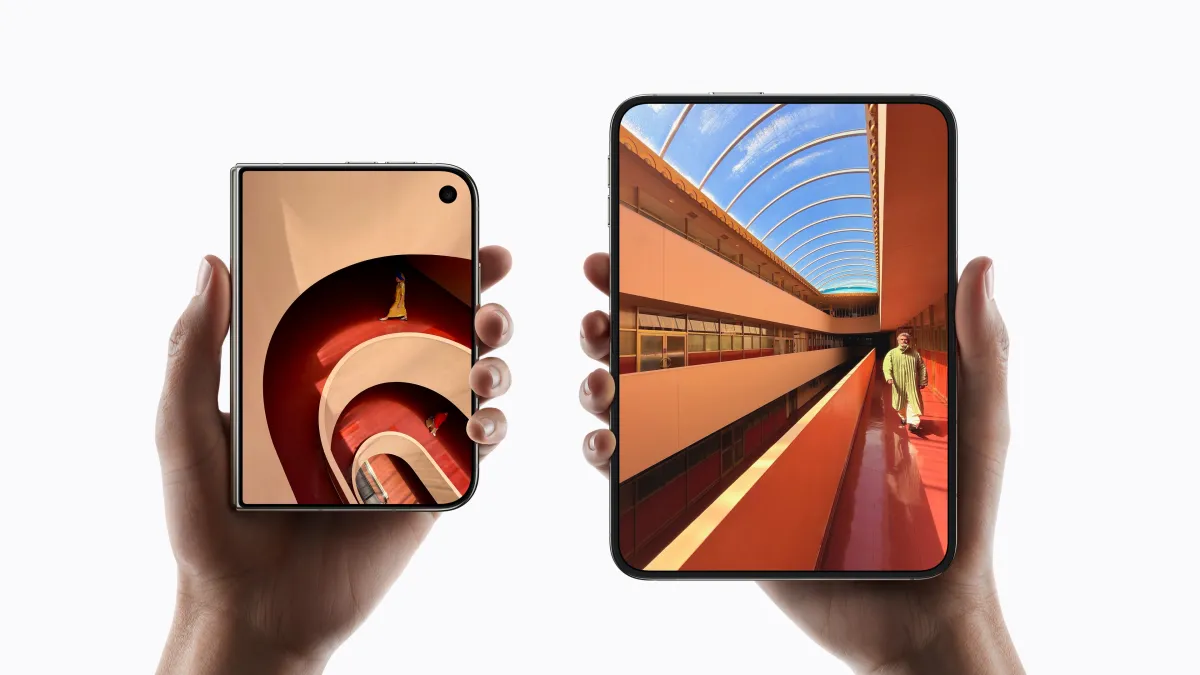
Apple’s groundbreaking foldable, the iPhone Duo, has burst onto the scene with unprecedented demand, leaving many eager customers waiting. While the Duo undeniably offers a fresh, innovative approach to the iPhone experience, unlocking its full potential and ensuring a seamless everyday interaction often requires a few strategic adjustments. From optimizing Touch ID for its unique form factor to customizing interface navigation and enhancing photography, this initial version benefits significantly from a tailored setup.
Key Takeaways
- Mastering Touch ID is Crucial:With Face ID absent, the Duo necessitates a thoughtful approach to Touch ID setup, including multiple fingerprint registrations and leveraging Apple Watch integration for convenience.
- Tailor Controls for Foldable Dynamics:Adjusting settings like fixed volume controls and implementing “Back Tap” for screenshots dramatically improves usability across the Duo’s various orientations.
- Leverage Accessibility Features Creatively:Features like Reachability, though designed for accessibility, prove invaluable for navigating the Duo’s unique wide screen and managing one-handed use.
After extensive hands-on experience with the iPhone Duo, we’ve identified several key configuration tweaks that transform it from a novel gadget into an indispensable daily driver. The most significant area for improvement, undoubtedly, lies in adapting to the return of Touch ID.
Recalibrating Your Authentication: The Touch ID Renaissance
The most significant paradigm shift for long-time iPhone users migrating to the Duo is the absence of Face ID. This means a return to the tactile, side-mounted Touch ID sensor for unlocking, authenticating apps, and authorizing Apple Pay transactions. While initially a hurdle for those accustomed to facial recognition, a few proactive steps can make this transition remarkably smooth.
- Register for Every Grip: The Multi-Fingerprint Strategy:This isn’t just a suggestion; it’s a necessity for the Duo. Unlike traditional iPhones often held in a consistent manner, the Duo’s foldable design invites a myriad of grips – horizontal, vertical, partially folded, fully open, left-handed, right-handed. Each orientation can shift which finger or thumb naturally rests on the Touch ID sensor. We strongly advocate for registering multiple fingerprints across both hands, accounting for every common way you might hold the device. Spend a few minutes rotating the Duo in your hands, identifying those natural resting positions, and registering the corresponding digits. While this setup is more involved than Face ID’s quick scan, it’s a one-time effort that pays dividends in daily convenience, eliminating frustration born from awkward finger placement. To register additional fingerprints, navigate toSettings > Touch ID & Passcode > Add a Fingerprint.
- Seamless Unlock with Apple Watch: Your Wearable Key:For the vast majority of iPhone Duo early adopters, an Apple Watch is likely already a companion device. This synergy offers a powerful workaround for the Touch ID dilemma. By enabling “Unlock with Apple Watch,” your Duo can automatically unlock when your paired, passcode-protected Apple Watch is worn on your wrist and within proximity. This feature significantly reduces the need to constantly engage with Touch ID, making quick glances or interactions far more fluid, especially when you’re out and about. Ensure your Watch is secured with a passcode and properly worn for this seamless integration. Activate this feature viaSettings > Touch ID & Passcode > Unlock with Apple Watch.
- “Rest Finger to Open”: A Subtle Speed Boost:While primarily an accessibility feature, “Rest Finger to Open” doubles as a valuable usability enhancement for Touch ID. When enabled, it eliminates the need for a physical press on the home button (or side button, in the Duo’s case) to unlock the device; a light touch is sufficient. This can shave precious milliseconds off your unlock time and reduce physical strain. Some users prefer the tactile feedback of a press, while others appreciate the effortless tap. Experiment with both configurations to discover your personal preference. You can toggle this setting underSettings > Touch ID & Passcode > Rest Finger to Open.
Optimizing the Foldable Experience: Usability Improvements
Beyond authentication, the Duo’s unique form factor introduces new considerations for basic interactions. Fortunately, iOS provides several settings that, when adjusted, significantly enhance the user experience, particularly concerning screen navigation and quick actions.
- Liberate Your Volume Controls: Disable Fixed Position:This is arguably one of the most impactful adjustments for new Duo owners. By default, iOS maintains “Fixed Position Volume Controls,” meaning “Volume Up” always increases volume and “Volume Down” always decreases it, regardless of the device’s orientation. On a traditional phone, this is intuitive. On a foldable that rotates and flips, it quickly becomes counter-intuitive. Disabling this setting allows the volume buttons to dynamically reorient themselves with the device, so the “up” action is always relative to the top or right edge of the screen. This seemingly minor change dramatically improves muscle memory and reduces frustration when holding the Duo in its various folded or unfolded states. Access this setting viaSettings > Sounds & Haptics > Fixed Position Volume Controls.
- “Back Tap” for Screenshots: A One-Handed Solution:Taking screenshots on the Duo, which typically involves simultaneously pressing a side button and a volume button, can be a two-handed juggling act, especially given the device’s width. Thankfully, a hidden gem within Accessibility settings offers a much more elegant solution: “Back Tap.” This feature allows you to assign specific actions – like taking a screenshot – to a double or triple tap on the back of the device. This transforms screenshot capture into a single-handed operation, letting you tap the back of the Duo with a finger while holding it securely. Many users opt for a triple tap to avoid accidental triggers. Configure this game-changer atSettings > Accessibility > Touch > Back Tap > then choose a double or triple tap and select “Screenshot” (found under the “Device” menu).
- Taming the Wide Screen with Reachability:Originally designed to assist with one-handed use on larger iPhones by lowering the top of the screen, Reachability adapts uniquely to the Duo’s passport-like width. When enabled on the Duo, a swipe along the left or right edge of the screen brings the opposite side of the interface within thumb’s reach. This is particularly useful when the Duo is fully unfolded, making it easier to interact with elements on the far side of the expansive display without a cumbersome hand shift. While enabled by default, some users find themselves accidentally triggering it. If that’s the case, you can disable it underSettings > Accessibility > Touch > Reachability.
- Automating Screen Lock on Fold: A Proactive Shortcut:While not a native setting *yet*, many users appreciate the convenience of having their Duo lock automatically when folded shut. This is a personal preference that enhances privacy and battery life. Achieving this requires a simple custom shortcut within the Shortcuts app.
- First, open theShortcutsapp.
- Tap theplus (+)sign in the top right corner to create a new shortcut.
- Tap ‘Add Action’.
- In the search bar, type “Lock Screen” and select the ‘Lock Screen’ action.
- Tap ‘Done’ to save your new shortcut.
- **Important Note:** As of now, iOS does not offer a direct automation trigger based on the physical folding state of the device. This means you will need to manually run this shortcut (e.g., from your home screen, the Shortcuts widget, or by asking Siri) when you fold your Duo. While not fully automatic, it’s a quick tap to secure your device, and hopefully, Apple will introduce folding-state automation triggers in a future update.
Bottom Line:The iPhone Duo represents a bold leap forward for Apple, offering a truly innovative user experience. However, like any pioneering technology, it comes with a learning curve. By proactively adjusting these core settings and embracing the thoughtful design choices available within iOS, users can transform the Duo from a merely impressive device into a remarkably intuitive and deeply personal extension of their digital lives. These small tweaks collectively make a significant difference, ensuring that the future of the iPhone, in its foldable form, is not just cutting-edge, but also effortlessly usable.
In the rapidly evolving landscape of mobile technology, devices like the iPhone Duo stand out, not just for their innovative form factors but for the subtle yet powerful features they pack. Often, the most impactful functionalities are tucked away, waiting to be discovered by users keen to optimize their daily interactions. While the iPhone Duo already offers a compelling blend of productivity and creativity with its dual-screen design and advanced camera system, a deeper dive reveals shortcuts and settings that can dramatically enhance your experience. This article uncovers some of these lesser-known gems, designed to streamline your workflow and refine your photography, ensuring you get the absolute most out of your sophisticated device.
Key Takeaways:
- Unlock Enhanced Productivity:Master the Quick Lock Screen Shortcut to secure your device instantly, boosting privacy and efficiency with a single tap.
- Tailor Your Photography Experience:Customize on-screen camera controls for faster access to essential tools, adapting your iPhone Duo’s camera to your unique shooting style.
- Refine Smart Capture Moments:Gain discreet control over the innovative Smart Take feature by managing its flash behavior, ensuring more natural and less intrusive automatic photo sessions.
Unlocking Efficiency: The Quick Lock Screen Shortcut
For those who value both security and speed, the ability to instantly lock your iPhone Duo is a game-changer. Whether you’re in a busy public space, handing your device to a child, or simply want to ensure your privacy with a single tap, a dedicated lock screen shortcut offers unparalleled convenience. While many users rely on the physical power button, integrating a virtual “Lock Screen” button into your Shortcuts app transforms a routine action into an effortless gesture. This isn’t just about security; it’s about minimizing friction in your daily digital life, ensuring that your valuable information remains protected without slowing you down. The Shortcuts app, often overlooked, is a powerhouse for personal automation, and this particular trick exemplifies its potential for enhancing everyday utility on your iPhone Duo.
Here’s how to set up this incredibly useful shortcut:
- First, you’ll open theShortcutsapp.
- Once opened, you’ll tap on the plus button in the upper-right. You then tap into the search bar, and tap on the word “automation” that appears in blue under the search bar that appears at the top of the screen. Next, you’ll scroll down until you find the option “Opened or Closed” under the Display section. Tap that, tap on the word “Opened” to change it to “Closed,” then tap in the search bar at the bottom again and type in “Lock Screen.” Tap on the option
“Lock Screen” when it appears in the search results, and you’re done — the shortcut has been made. You can tap on the play button here to test it, if you’d like. And if you ever change your mind, just delete the shortcut!
This simple yet powerful automation elevates your iPhone Duo’s security and ease of use. Imagine quickly securing your device without fumbling for buttons, making it invaluable for professionals, parents, or anyone who values instant control over their digital privacy. It’s a testament to how intelligent use of built-in features can transform your interaction with technology.
Special Camera Tricks

The iPhone Duo’s camera system is already renowned for its versatility and imaging prowess. However, a few specialized tricks can elevate your photography, giving you more control and subtlety over your shots. These features, while perhaps niche, are invaluable for those who seek to push the boundaries of mobile photography or simply desire a more refined shooting experience. For content creators, casual photographers, or anyone who frequently uses their Duo for capturing moments, these customizations offer a significant advantage.
- Customize Camera Controls:The iPhone Duo lets you customize the on-screen layout of the camera controls in the Camera app itself, as part of the latest iOS software update. To use this feature, you’ll open the Camera app and open the six-dot Camera Controls menu in the bottom right. You then tap on the plus sign at the top of the menu (or to the right or left depending on how you’re holding the phone!). This lets you pick and choose which of the camera tools appear above the camera frame itself for quick access, like the flash, or the option to enable or disable Live Photos, or whether Night Mode is on or off, among other things. You can then drag those options to create whichever order makes the most sense for you. (Note: this feature is not exclusive to the Duo.)
This customization capability is a boon for efficiency. Instead of digging through menus, your most-used settings—like exposure compensation, aspect ratio, or filters—are exactly where you want them. This personal touch ensures that your camera adapts to your workflow, rather than the other way around, allowing for quicker adjustments and a more intuitive shooting process, especially when moments are fleeting.
- Disable Smart Take Flash:The Smart Take feature on the iPhone Duo is designed to help you take hands-free group or solo shots without having to use a self-timer. Instead, you prop up the Duo on a stable surface and activate Smart Take by pressing the button. The camera will detect when there’s movement or the poses change, and the subjects are ready, then takes the picture. But one thing not everyone likes is that each time the photo is captured, the camera flash blinks. This is meant to be a visual clue that lets you know the shot has been taken. However, you can control how the flash behaves during these automatic capture sessions by configuring a setting. To do so, you’ll go toSettings > Camera > Flash During Captureand toggle the switch off if you prefer.
Smart Take is a fantastic feature for capturing natural, unposed moments, particularly for group shots where a traditional timer might result in awkward rushes. However, the default flash cue, while helpful for confirmation, can sometimes be disruptive or undesirable, especially in low-light environments where you might prefer natural ambient lighting, or in situations requiring discretion. Disabling the flash allows for more subtle captures, preserving the mood and authenticity of the scene without the stark interruption of a bright flash. It gives users the power to choose between a visual cue and a more natural photographic outcome, enhancing the versatility of the Smart Take feature significantly.
When you purchase through links in our articles, we may earn a small commission. This doesn’t affect our editorial independence.
{content}
Bottom Line:
The iPhone Duo is more than just a powerful smartphone; it’s a versatile platform whose full potential is unlocked by exploring its nuanced features. From streamlining your daily security with an instant lock screen shortcut to fine-tuning your photographic process with custom camera controls and discreet Smart Take options, these hidden gems offer tangible benefits. By taking a few moments to configure these settings, you can significantly enhance your user experience, making your iPhone Duo an even more intuitive, secure, and creatively capable companion. Don’t just use your tech; master it.
Source:{feed_title}